
Spoke Data Actions
Spoke Data Actions
HTTP contracts Spoke calls against a URL you configure.
Data Actions let you customise Spoke call and conversation workflows. Spoke sends a request to a URL you configure and uses the payload you return. The paths shown here are labels for each Data Action, not Spoke endpoints — see Data Action Concepts for how delivery, security and configuration work.
Tags
Inbound Conversations
The Inbound Conversations Data Action allows you to programmatically handle the creation of a new conversation, including:
- Sending auto response messages
- Assigning one or more Spoke users to manage the conversation
- Updating the conversation name
Conversation in Spoke is a thread of messages between a group of two or more participants. Participants can be on external channels, such as SMS or WhatsApp, or internal channels, such as user of Spoke application. External participants connect to a conversation through an SMS or WhatsApp enabled number. Internal participants connect using the Spoke application.
This Data Action is invoked when a new conversation is created from an incoming message from a participant on an external channel. A new conversation is created when a message is received from an external contact that is not already involved in an active conversation with the given company number.
Implementing this data action allows you to define which Spoke Users (if any) are responsible for managing the conversation, as well as optionally sending an auto response to the external participant. Once a conversation is created, this Data Action will not be invoked again for the contact number/company address pair, until the active conversation is closed.
Note: Spoke uses the Twilio Conversations API to support conversational messaging in the Spoke application. The Data Action(s) documented here extend the functionality of the Conversations API to enable routing, shared inbox functionality and auto response management. You can read more about Twilio's conversations API here.Below are the settings that can be controlled via Inbound Conversations Data Action.
Auto Response
Allows an auto response message to be sent to the external contact. Use this to automatically respond to the external contact without waiting for a user to respond. On top of normal auto response scenarios such asThanks for your message, we'll be with you shortly, the auto response feature can be used for scenarios where you do not want your users handling a conversation, for example:
- Profanity in the incoming message
- Time of day
- A closed or unmonitored service channel
Routing Action
Defines whether a conversation is to be routed to Spoke users viaassign or not routed via donotroute.
If a conversation is set to donotroute then no Spoke users will be assigned to the conversation. The conversation will be closed, and because no internal participants are assigned the external contact will not receive any response, unless the auto response feature is also used.
Assign Users
Allows one or more Spokeusers to be assigned to the conversation. This allows you to fine tune which users are added to a specific conversation. You can add more than one user, and all users can actively participate in the conversation.
Each user is identified by their email address in Spoke. Invalid emails are ignored.
Conversation Name
Allows a name to be assigned to a conversation. Use this to provide more context to your Spoke users about the conversation. The name will appear in the conversation list in the Spoke application, and will be used as the title for any push notifications that are sent to users' devices when new messages are added to the conversation.Claim Rule
Allows a claim rule to be assigned to a conversation. Claiming a conversation requires a single team member to 'claim' ownership of the conversation. When a conversation is claimable, a 'Claim Conversation' button displays in the Spoke application. Once claimed, all other team members are removed from the conversation.Close Timer
Allows a close timer to be set to a conversation. Use this to control how long the conversation will remain open before being automatically closed by the system. The timer is reset any time a conversation is updated, including adding new messages. Specify the timer value in ISO8601 duration format.Passthrough Parameters
Sets the passthrough parameters associated with the conversation. See Passthrough Parameters for the full picture of how they are set and returned. The maximum size of passthrough parameters is 1000 bytes. If this limit is exceeded, then the passthrough parameters from the response will be discarded.Request and Response
Spoke sends an HTTPGET request with the parameters defined in the Inbound Conversations Request Payload, and expects an Inbound Conversations Response within 2 seconds. If no response payload is returned, the call will proceed as planned, using the original configuration for the call.
If the request returns a non-200 response or times out and the fallback URL is configured, Spoke will send another request to the fallback URL with the same payload.
If no response payload is returned, the conversation will proceed as planned, using the original configuration for the given company address. This means that:
- Messages to an assigned SMS enabled DDI will be routed to the assigned users
- Company numbers or addresses that are unassigned will not have any users added to the conversation, and the conversation will be automatically closed
Insights
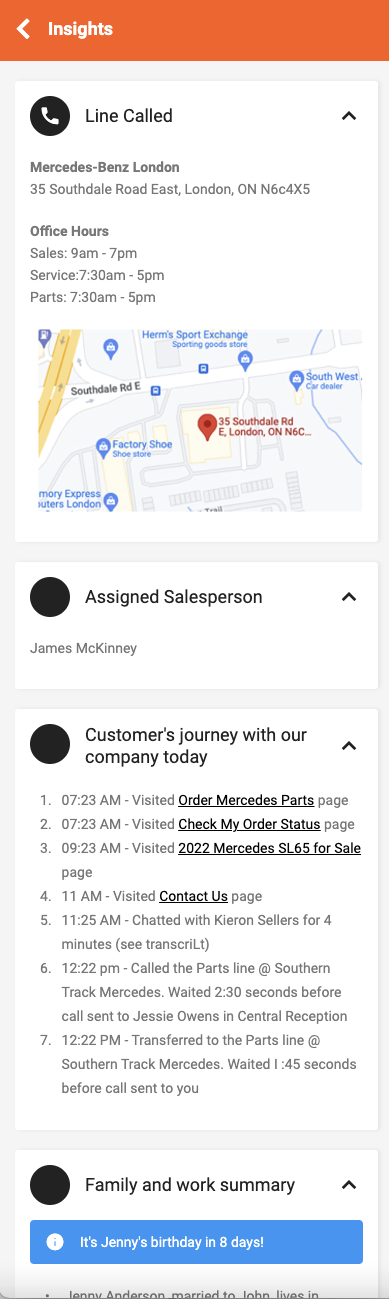
The Custom Insights Application Data Action allows you to programmatically enrich and customize information about an external contact while you are viewing their contact card or are on a call with them in the Spoke Phone app.
 When a user views a contact card or is on a call, Spoke sends an HTTP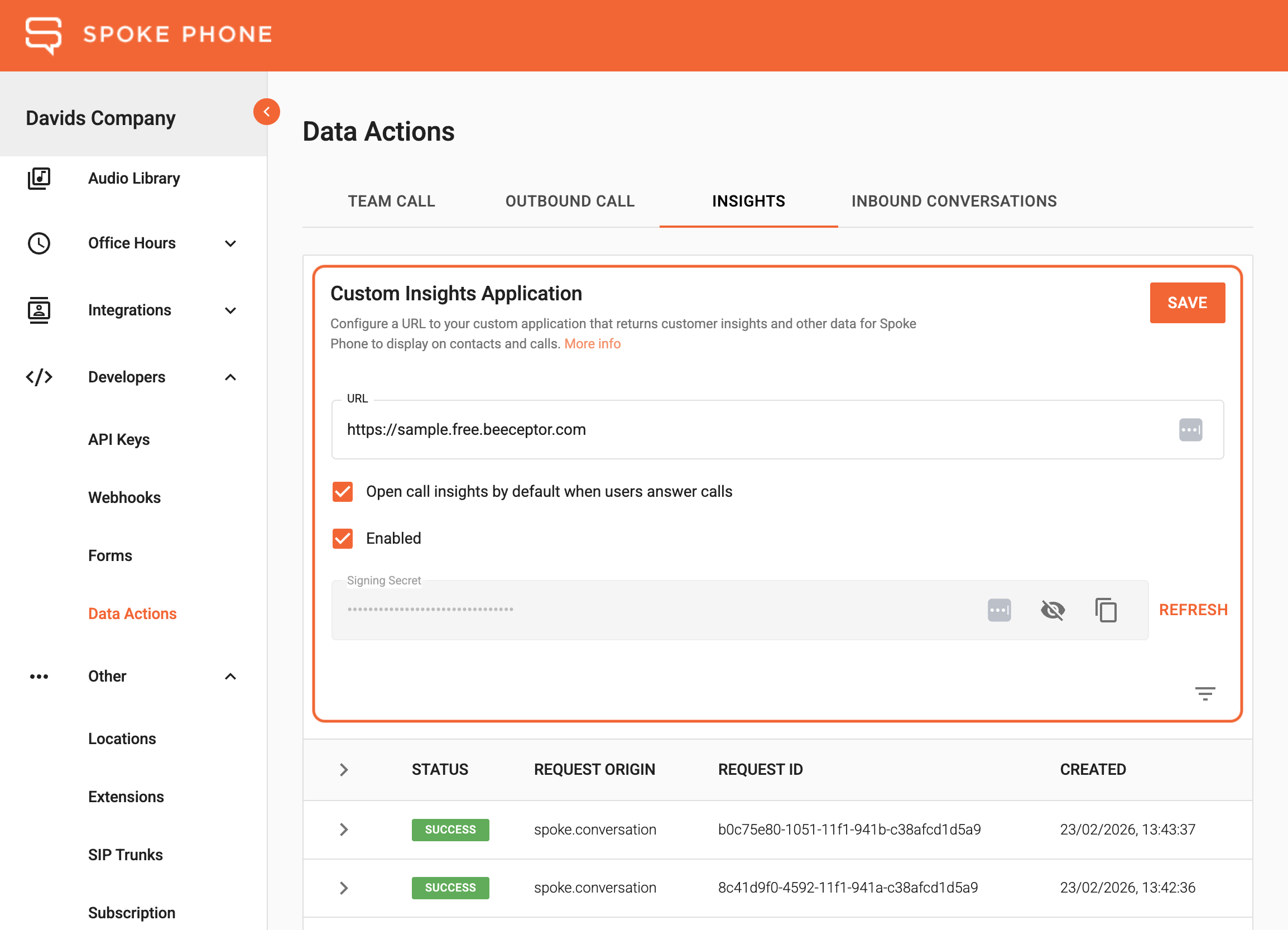
 Spoke will make a Contact Insights request every time the user opens a contact card from the directory.
Note that request payloads are slightly different between internal contacts and external phonebook contacts:
Spoke will make a Contact Insights request every time the user opens a contact card from the directory.
Note that request payloads are slightly different between internal contacts and external phonebook contacts:
 Spoke will make a Call Insights Request at the start of a call (inbound or outbound).
If Spoke has identified that a call involves a contact, then the request will also include the associated
Spoke will make a Call Insights Request at the start of a call (inbound or outbound).
If Spoke has identified that a call involves a contact, then the request will also include the associated
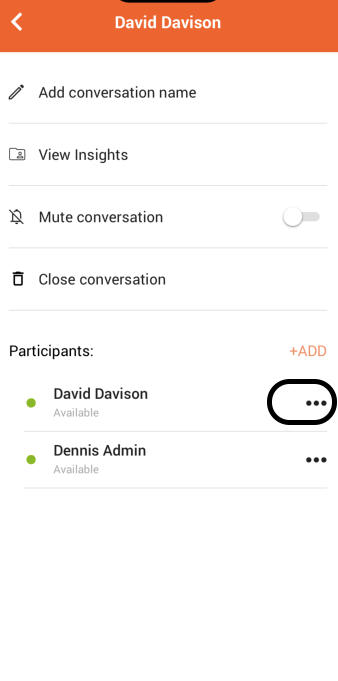
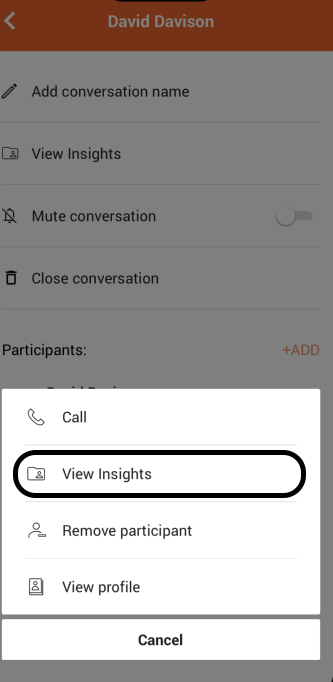
Spoke app users can also view any selected party's Insights for conversations from the participant pop up menu of the conversation settings screen.
Spoke will include the following fields as query parameters when sending a conversation Insights request to the configured URL:
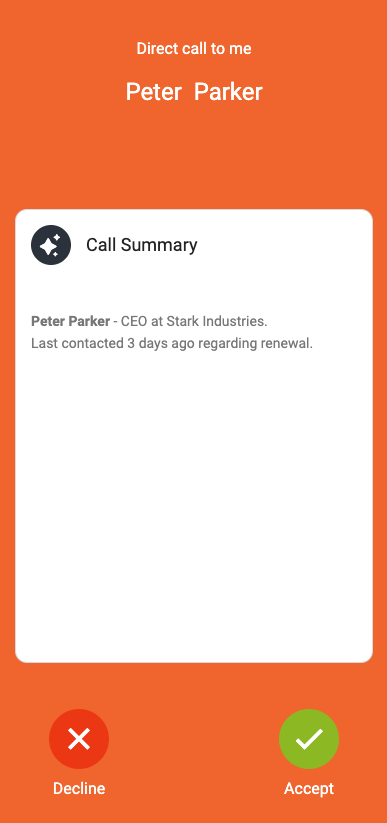 Call Summary (call history → select a call)
Only the context is shown. The context from the Insights Response is displayed as specified by
Call Summary (call history → select a call)
Only the context is shown. The context from the Insights Response is displayed as specified by 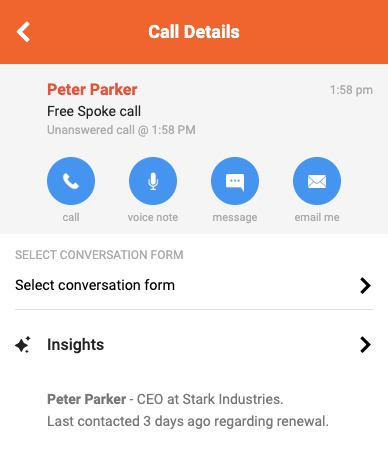 In-call (active call → Insights tab)
The context from the Insights Response is shown followed by the card list. Enlighten cards are displayed before the Data Action cards as specified by
In-call (active call → Insights tab)
The context from the Insights Response is shown followed by the card list. Enlighten cards are displayed before the Data Action cards as specified by 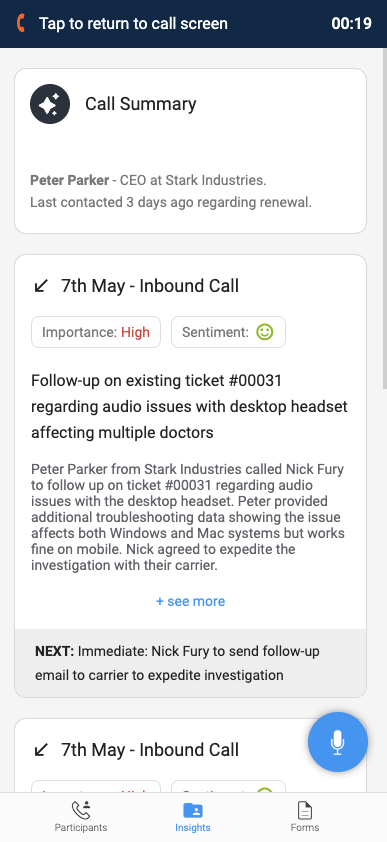 Contact Insights (directory → select contact → Insights)
The context from the Insights Response is shown followed by the card list. Enlighten cards are displayed before the Data Action cards as specified by
Contact Insights (directory → select contact → Insights)
The context from the Insights Response is shown followed by the card list. Enlighten cards are displayed before the Data Action cards as specified by 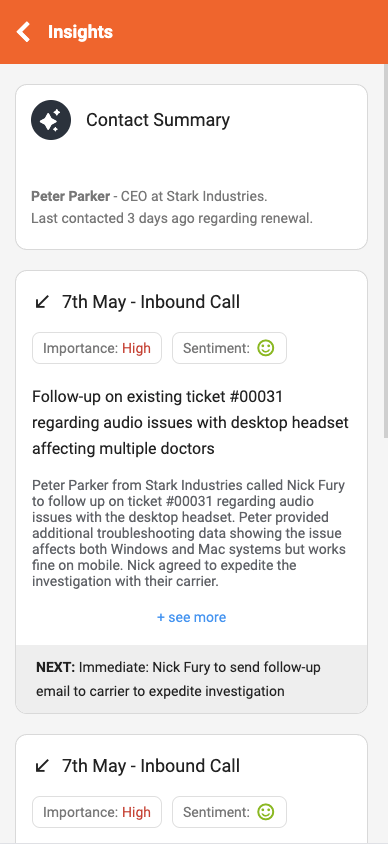 Call Intelligence (call history → select a call → Insights)
The context from the Insights Response is shown followed by the card list. Enlighten cards are displayed before the Data Action cards as specified by
Call Intelligence (call history → select a call → Insights)
The context from the Insights Response is shown followed by the card list. Enlighten cards are displayed before the Data Action cards as specified by 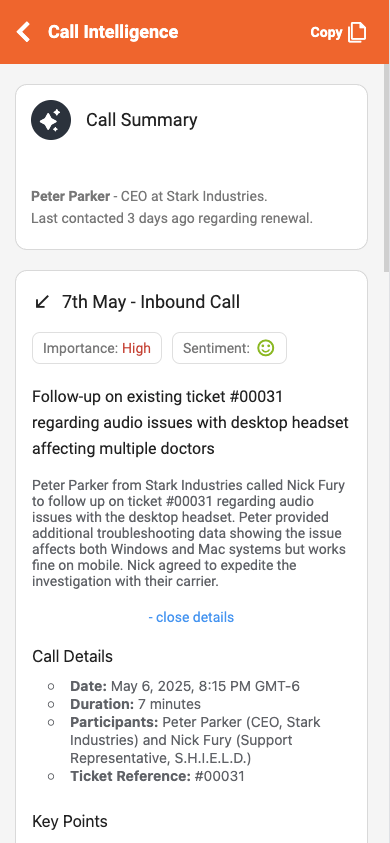
Spoke Phone App
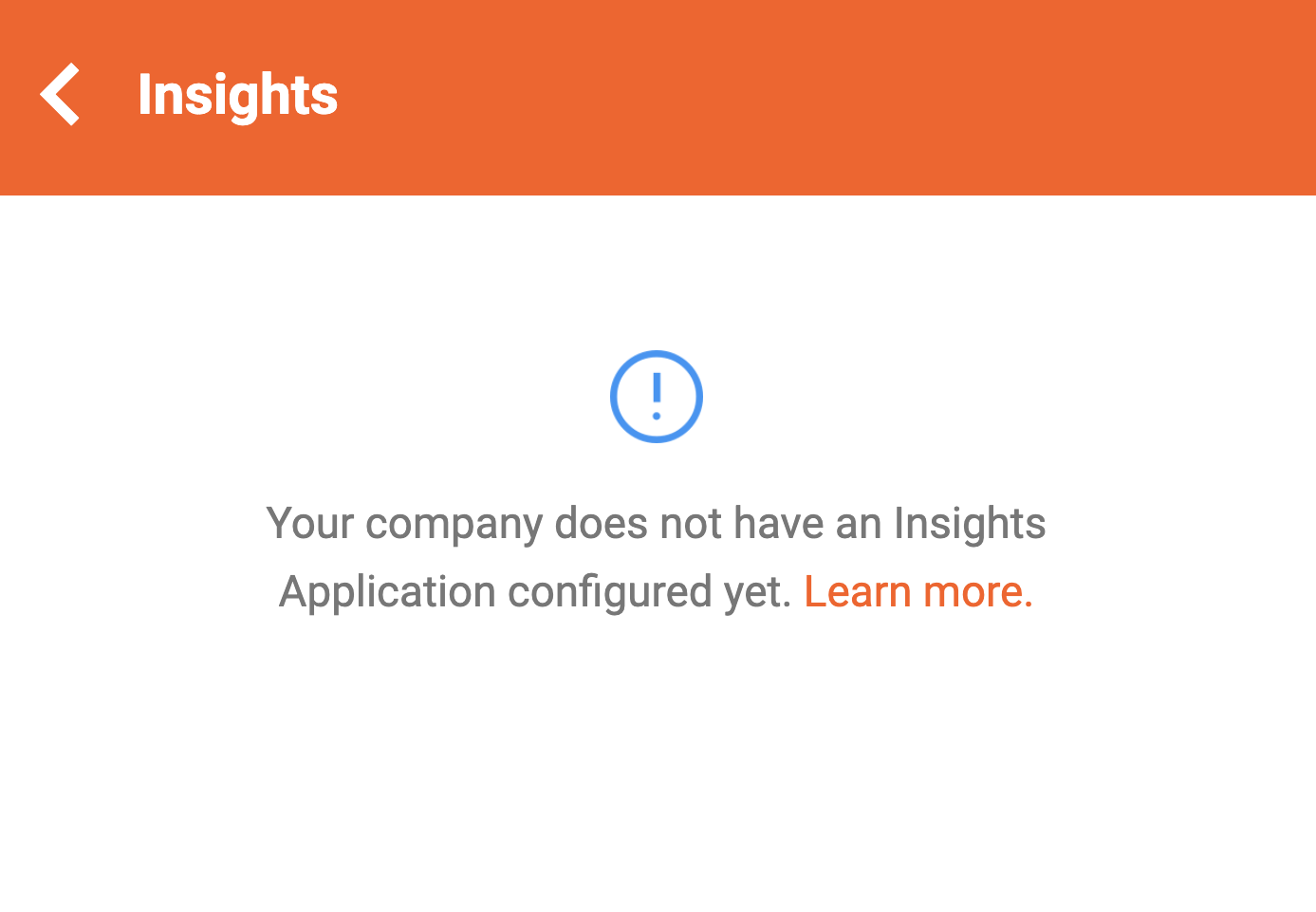
Table of Insights Data Actions item
Spoke Phone App
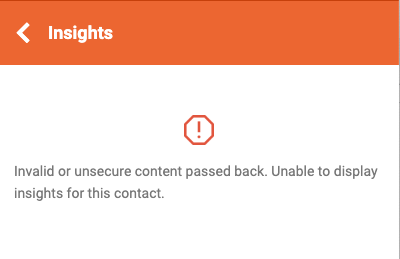
Table of Insights Data Actions item
Spoke Phone App
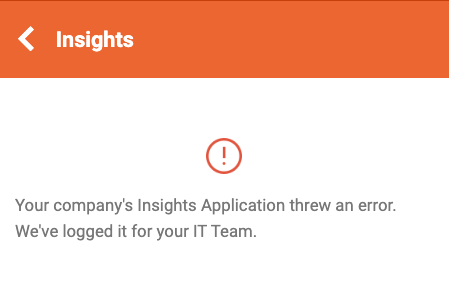
Table of Insights Data Actions item
Spoke Phone App
Before getting started, we recommend you read the Data Action Concepts page to familiarise yourself with the Spoke Data Action mechanism and how Twilio calls integrate with Spoke.
When a user views a contact card or is on a call, Spoke sends an HTTP GET request to the URL you have
configured for the Custom Insights Application Data Action
and expects a response that contains the Insight cards that will be displayed when the user views that contact’s
Insights.
Contact Insights
Spoke Phone app users can view Insights for other Spoke users from the internal directory or phonebook contacts from the external directory.
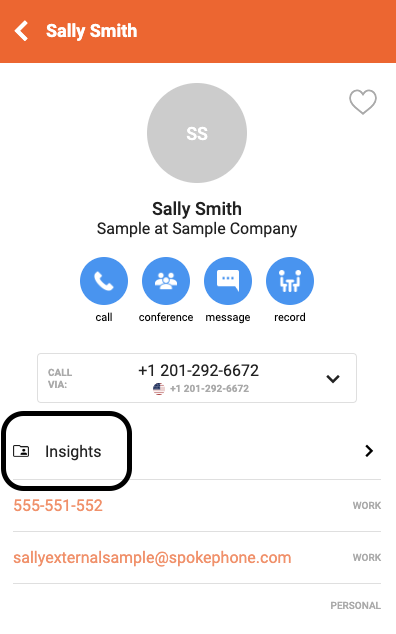
Spoke will make a Contact Insights request every time the user opens a contact card from the directory.
Note that request payloads are slightly different between internal contacts and external phonebook contacts:
- External Contacts Request
- Internal Contacts Request
contactSource field will not be provided and the isInternal field will be true.
Whereas for external phonebook contacts, the contactSource field will be included and the isInternal field will be
false.
Call Insights
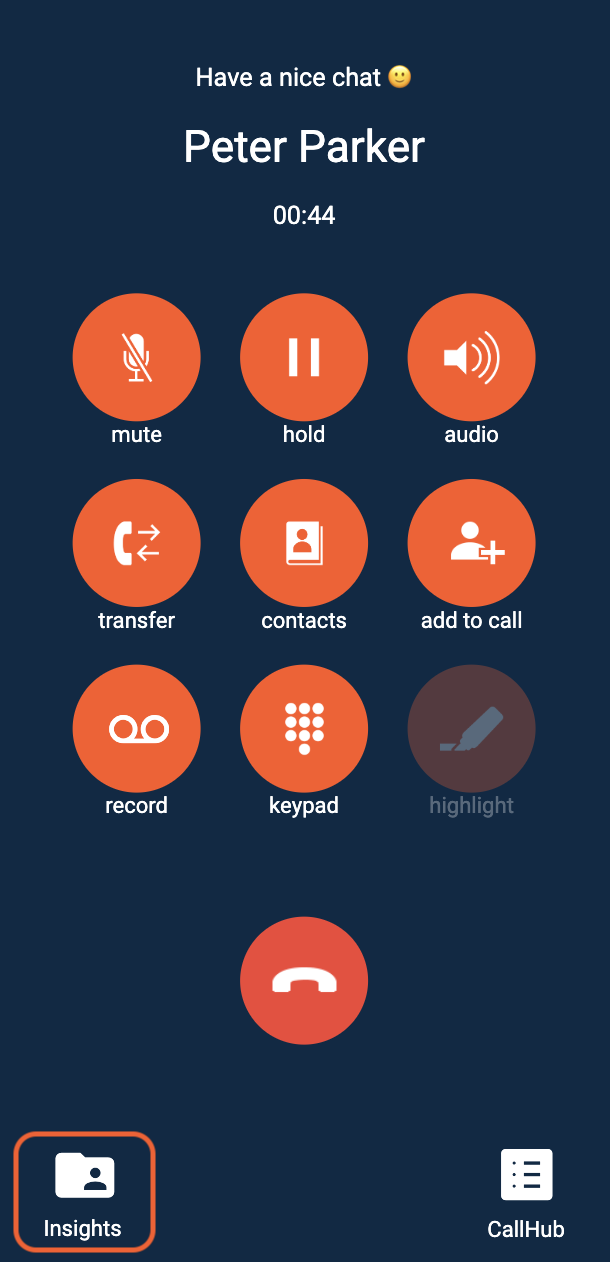
Spoke Phone app users can view Insights for calls from the call screen Insights tab.
Spoke will make a Call Insights Request at the start of a call (inbound or outbound).
If Spoke has identified that a call involves a contact, then the request will also include the associated contactId,
contactEmail, and contactSource (contactSource only included for external phonebook contacts).
Passthrough Parameters
Any existing passthrough parameters stored against the call are included in the request. Passthrough parameters are flattened into key-value pairs, URL-encoded, and then appended to the query string. See Passthrough Parameters for the full picture of how they are set and returned. Example: Given a call with the following passthrough parameters:The constructed Call Insights data action request will be:Code
Code
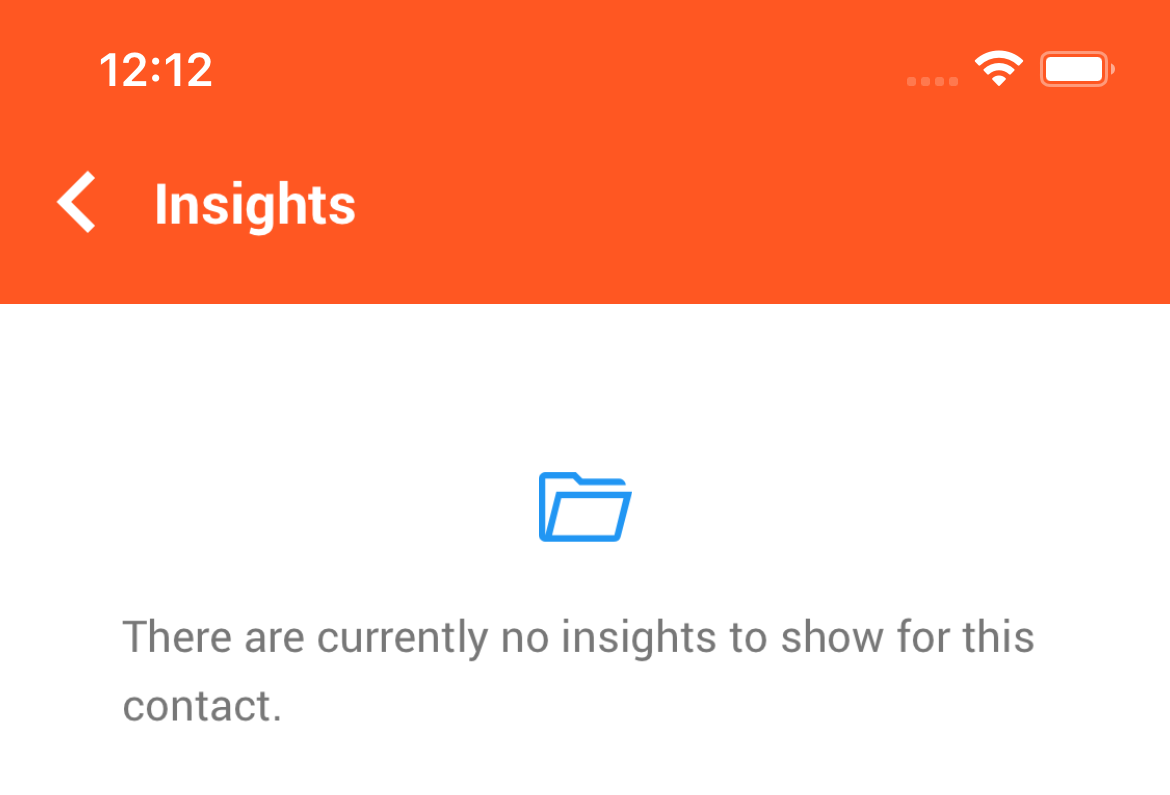
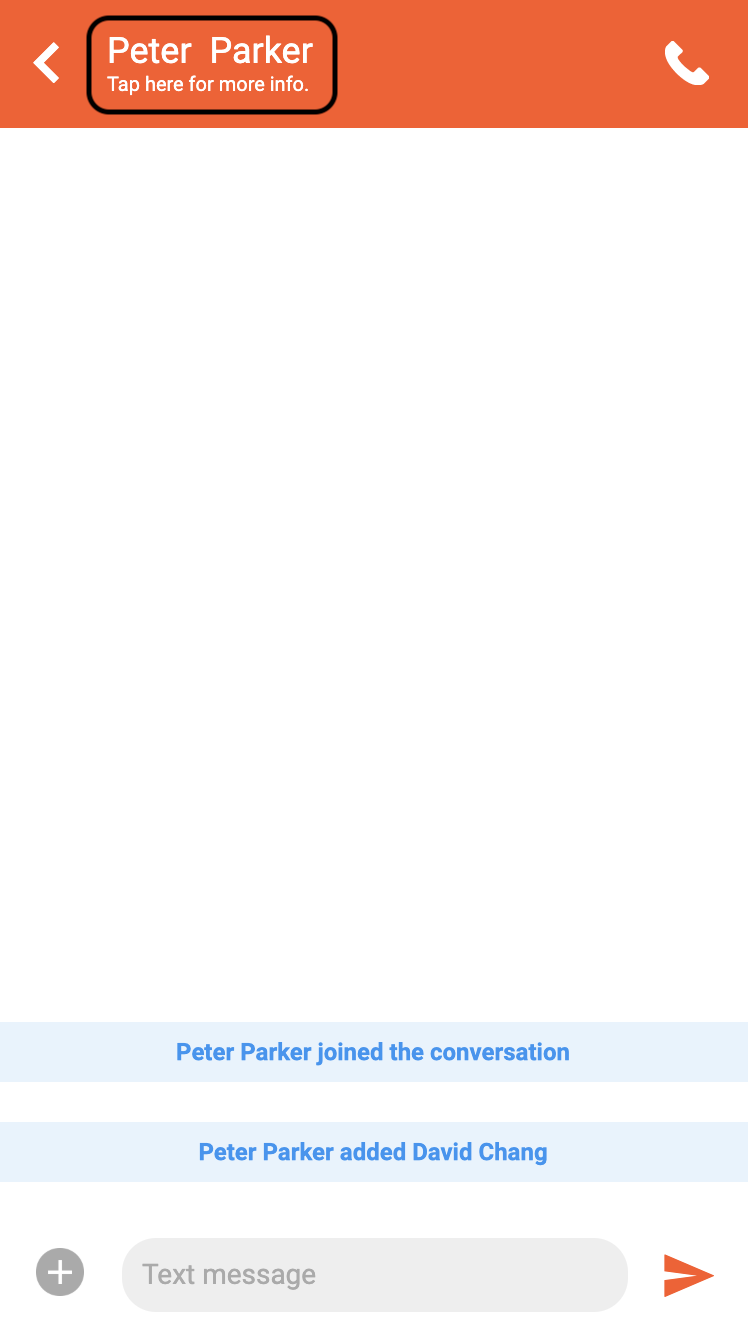
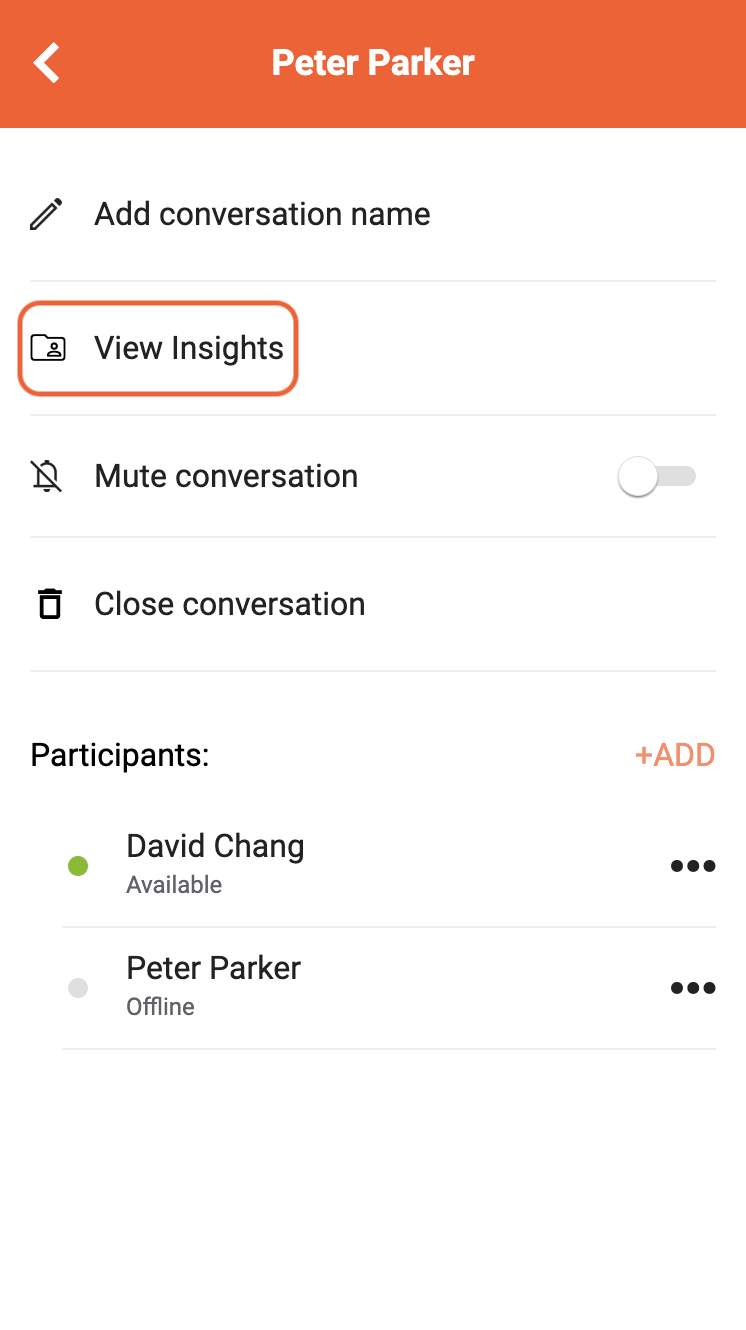
Conversation Insights
Spoke app users can view primary party's Insights for conversations from the conversation screen pop up menu or the conversation settings screen.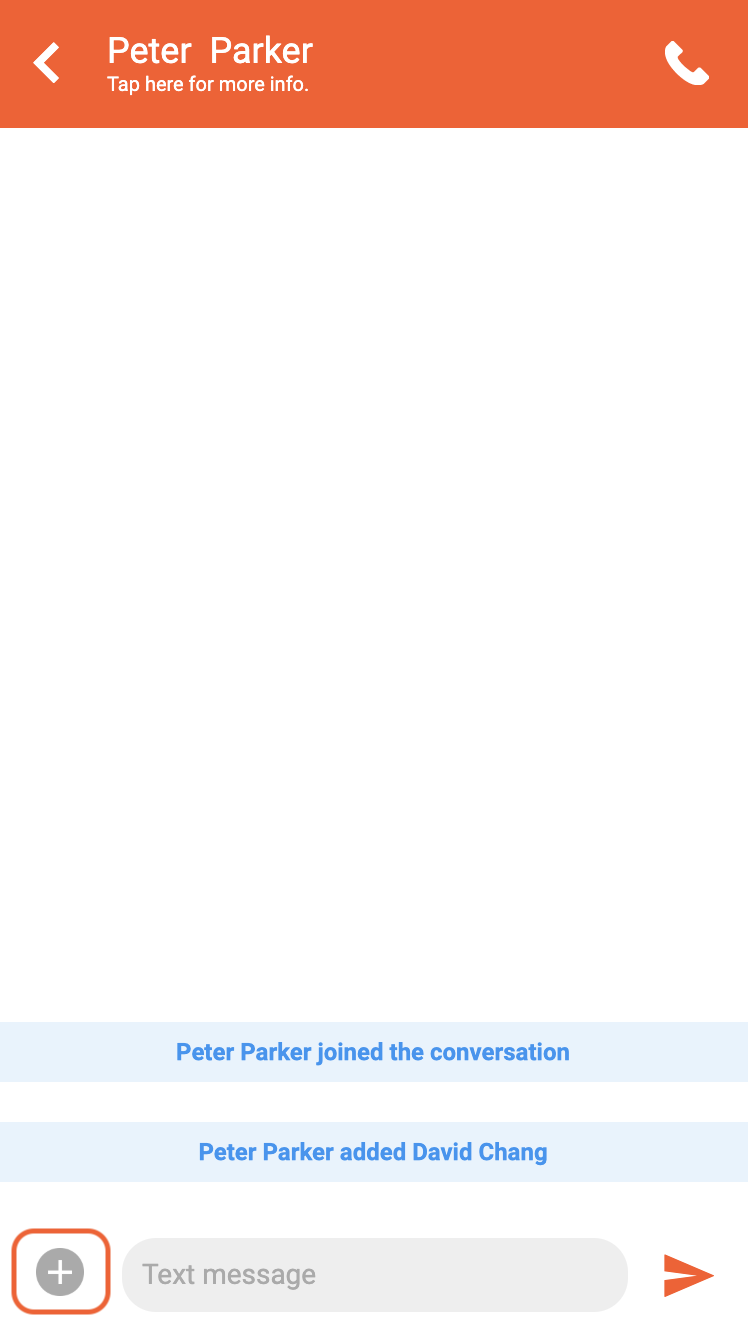 | 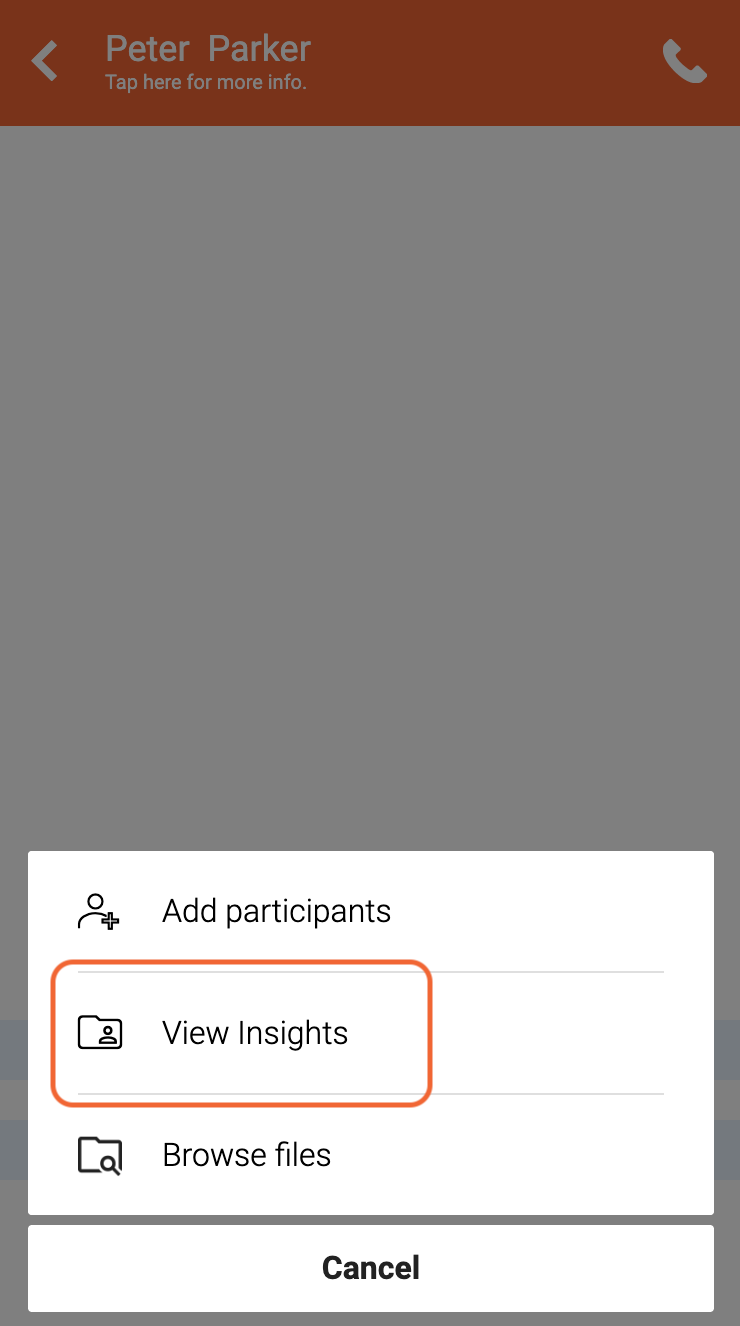 |
 |  |
 |  |
Insights Response
Similar to other Data Actions, Spoke expects a response within 2 seconds. The response payload is expected to be an object containing Insight cards with optional context and preferences, as specified here.Combining with Enlighten Insights
If your organization has Enlighten Call Insights enabled and Data Action Insights configured in the Spoke Account Portal, you can use thepreferences field in the Insights response to control how Enlighten Insights are displayed alongside your Data Action Insight cards.
The following table describes the behavior of the Spoke application when these settings are configured:
| Enlighten Call Insights Enabled | Data Action Insights Configured | Behavior |
|---|---|---|
| Yes | Yes | Both sources displayed, preferences controls card ordering and context source |
| Yes | No | Only Enlighten Insights displayed |
| No | Yes | Only Data Action Insights displayed |
| No | No | No Insights displayed |
Example
The following Insights Response uses thepreferences field (see the schema definition) to configure what to display in the Spoke application when both Enlighten and Data Action insights are enabled. Screenshots of each screen are shown below.
Pre-call (desktop only) Only the context is shown. The context from the Insights Response is displayed as specified byCode
preferredSource.
Call Summary (call history → select a call)
Only the context is shown. The context from the Insights Response is displayed as specified by preferredSource.
In-call (active call → Insights tab)
The context from the Insights Response is shown followed by the card list. Enlighten cards are displayed before the Data Action cards as specified by display.
Contact Insights (directory → select contact → Insights)
The context from the Insights Response is shown followed by the card list. Enlighten cards are displayed before the Data Action cards as specified by display.
Call Intelligence (call history → select a call → Insights)
The context from the Insights Response is shown followed by the card list. Enlighten cards are displayed before the Data Action cards as specified by display.
Debugging
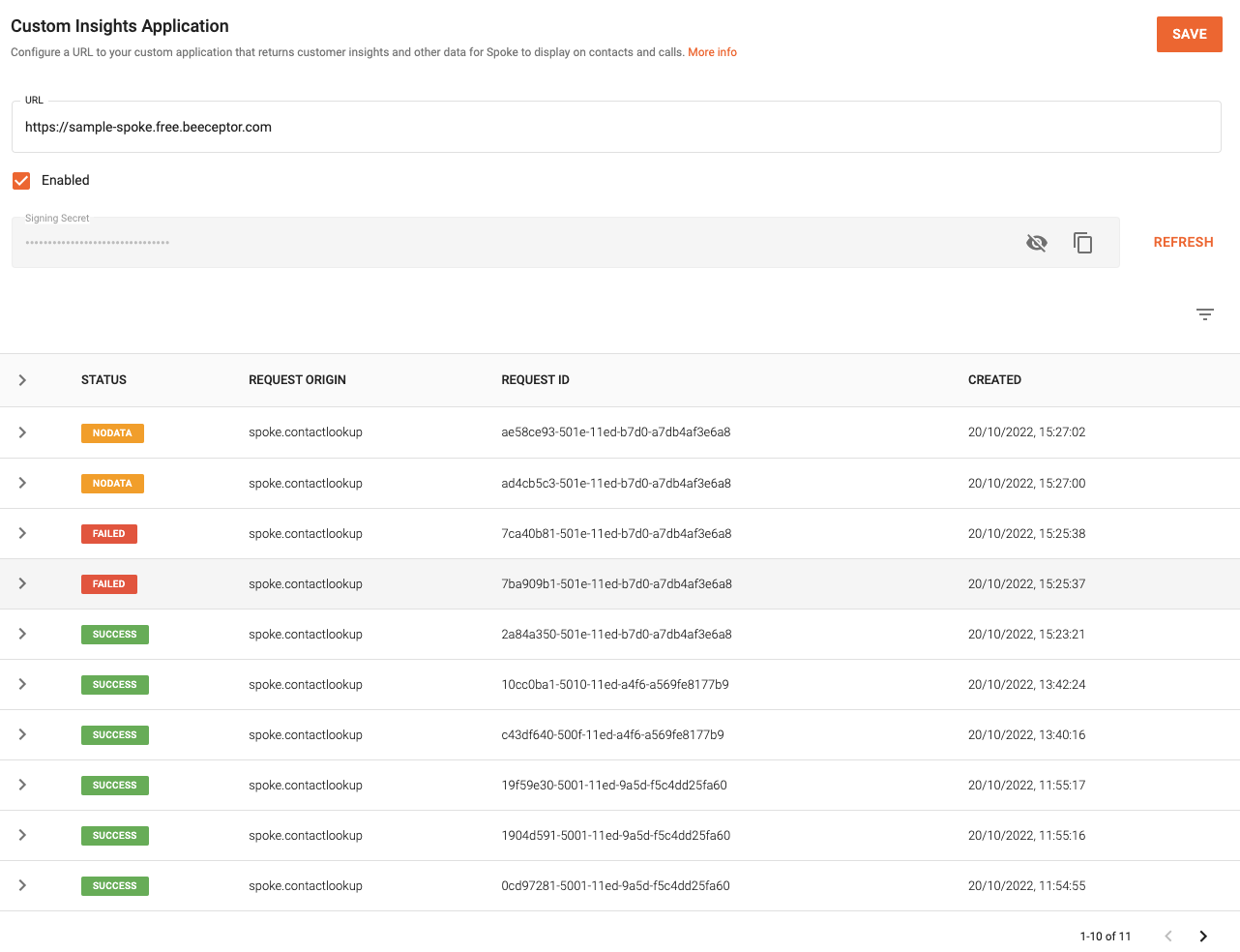
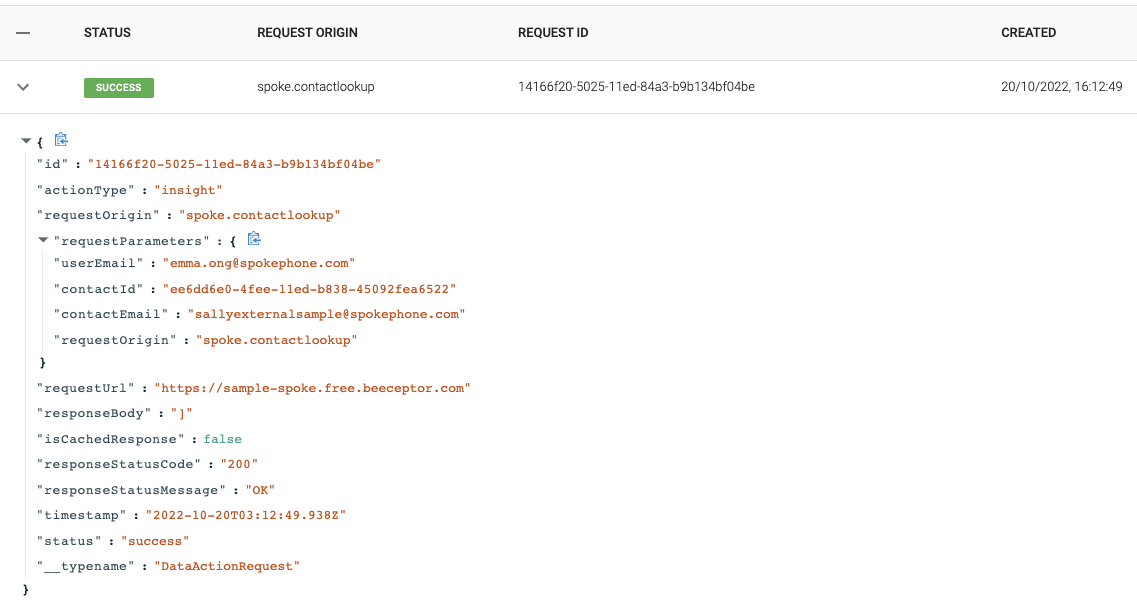
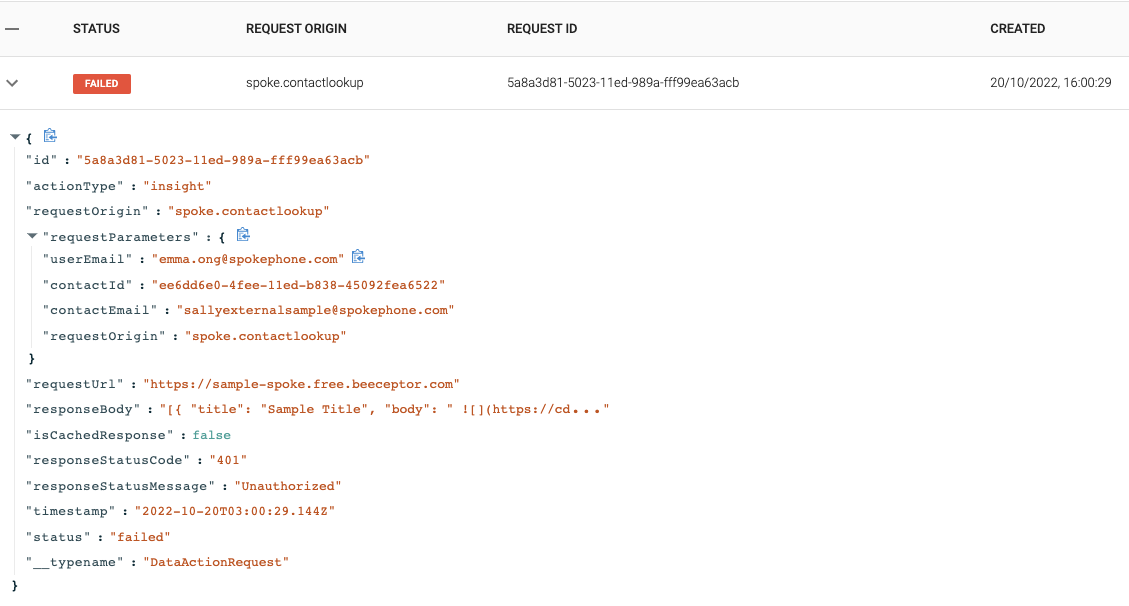
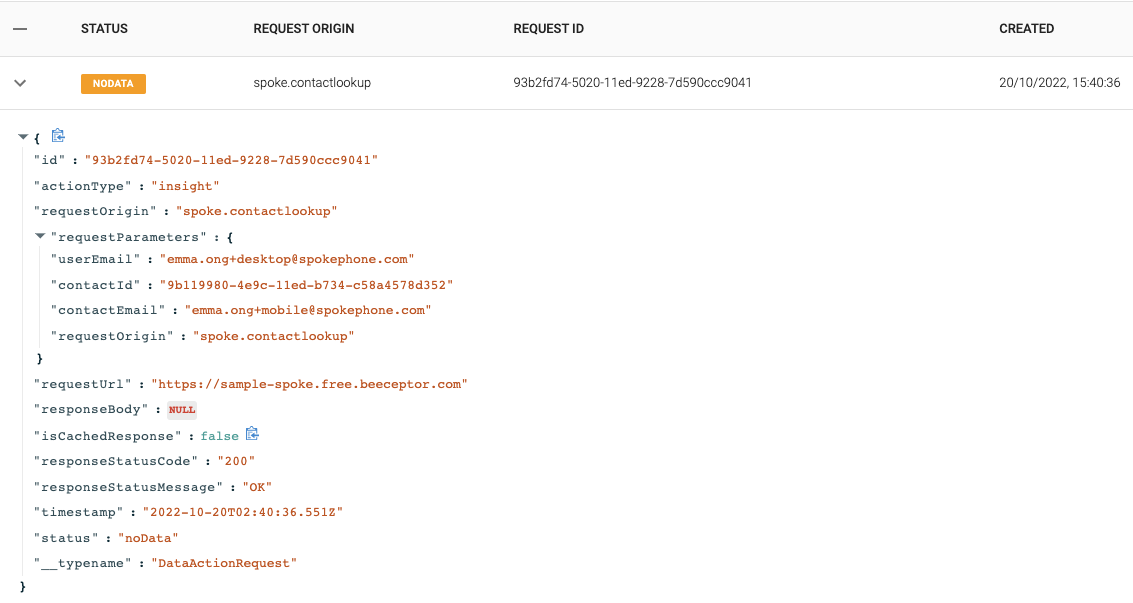
A table of Insights Data Actions that have been performed is available on the configuration page on the Spoke Account Portal and can be used to debug your Custom Insights Application.
Status Types
Thestatus column on the table refers to the response from the configured URL. There are 3 status types:
successfailurenoData
status does not refer to the validity of the response body.
Here are cases of each status type when they appear on the Spoke Account Portal and their scenarios when users click to view Insights and there is an error:
-
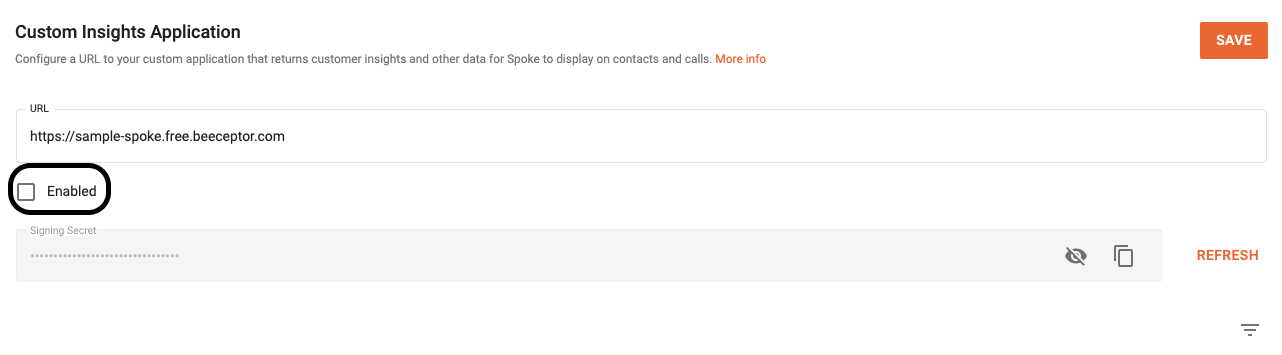
The table will not be updated with a new entry if the Insights app has not been configured for an organisation
-
An entry with a status of
successwill be added if:- there is a valid response or
- the response is not valid JSON or is malformed
-
An entry with a status of
failedwill be added if a network error is encountered
-
An entry with a status of
noDatawhen the response is empty (i.e. if there is no payload) or an empty array is returned
Outbound Call
The Outbound Call Data Action allows you to programmatically change the default state/configuration of an outbound Spoke call, right as the call is about to be placed.
When you set up Spoke, you set up company defaults for items such as call recording, the CallerIDs external contacts see when your team make calls, etc. Outbound Data Actions allow you to change this default behavior on a call-by-call basis.
These are the actions that are supported by Outbound Call Data Action:
These are the actions that are supported by Outbound Call Data Action:
Override Dial Permission
Allow or block any outbound call made to the specified phone number. Applies to all calls, whether made from the Spoke Phone application or a SIP device. For SIP device calls, this overrides the flag set against "Outbound calls allowed".Override Outbound Caller ID
Overrides the caller ID for any outbound call made.Passthrough Parameters
Overrides the passthrough parameters associated with the outbound call. Passthrough parameters can be attached to an outbound call using Spoke's Deep Linkingdial verb. See Passthrough Parameters for the full picture of how they are set and returned.
Existing passthrough parameters are included in the GET request and are flattened and appended to the query string as key-value pairs.
Passthrough parameters from the data action response will be merged with the existing passthrough parameters associated with the call. If a key exists in both the response and the current passthrough parameters, the value from the response will override the existing value.
The maximum size of passthrough parameters is 1000 bytes. If the merged passthrough parameters exceed 1000 bytes, then the passthrough parameters from the response will be discarded, and the stored passthrough parameters will not be updated.
Request and Response
Spoke sends an HTTPGET request with the parameters defined in the Outbound Call Request Payload, and expects an Outbound Call Response within 2 seconds. If no response payload is returned, the call will proceed as planned, using the original configuration for the call.
The request parameters for this Data Action will vary based on how the call is initiated:
-
If the call is initiated by a user or a SIP device attached to the user, the request will include the
userId,userExtension, anduserEmailparameters. No device-related parameters will be included. -
If the call is initiated by a standalone SIP device, the request will not include any user-related parameters and will include the
deviceId,deviceExtension, anddeviceAddressparameters instead.
Passthrough Parameters
The existing passthrough parameters are flattened into key-value pairs, URL-encoded, and then appended to the query string. Example: Given a call with the following passthrough parameters:The constructed data action request will be:Code
Code
Team Call
The Team Call Data Action allows you to programmatically override team configuration just prior to a call being offered to a team.
Note that the data action is not invoked if the call is sent directly to the team's voicemail e.g. transferring to the team's voicemail or redirecting to Spoke via its extension with
sendToVoicemail=true.
Below are the configurations that can be overridden via Team Call Data Action.
Display Name
Overrides the display name of the team the call will be offered to. This overridden name will be displayed in following areas:- Incoming call screen for new calls, transferred calls, and rolled over calls to the team
- Incoming call and missed call notifications
- Current call screen
- Users' call history and call details on Spoke applications
- Account-wide call history and call summary on Spoke Account Portal
- Call summary and voicemail summary emails
Note: This field is ignored for internal calls.
Users
Overrides the list ofusers who are offered the call. This allows you to fine tune who is offered individual calls while still following standard team offer flows.
Each user is identified by their email address in Spoke. Invalid emails are ignored.
Availability rules still apply - only available users will be offered the call.
If the team's offer pattern is set to Round-robin, the call will be offered to the users in the order in which they appear in the list.
Timeout
Overrides the number of the seconds Spoke will wait for someone to answer the call before returning or forwarding the call. The supported range of values fortimeout is from 10 to 300 seconds. If the provided value falls outside the range, it will be rounded to the nearest supported value.
Next Offer Timeout
Overrides the number of the seconds Spoke will wait before offering the call to the next available user(s). The supported range of values fornextOfferTimeout is from 5 to 60 seconds. If the provided value falls outside the range, it will be rounded to the nearest supported value.
Note : The asynchronous nature of API calls between Spoke and Twilio coupled with the overhead of setting up and tearing down call legs means that timeout values are indicative only, and the follow on action may occur some number of seconds after the timeout expires.
Priority
Overrides the priority of the call. This allows you to prioritise or deprioritise the call. The supported range of values forpriority is an integer value between 1 and 9, where 1 is the highest priority and 9 is the lowest. If the provided parameter falls outside the range, the call will be assigned a default value of 5.
Passthrough Parameters
Overrides the passthrough parameters associated with the inbound call. Passthrough parameters can be attached to an inbound call when using Spoke's Redirect Handler. See Passthrough Parameters for the full picture of how they are set and returned. Existing passthrough parameters are included in the POST request. If there are no existing passthrough parameters, thepassthroughParameters field will be an empty object.
Passthrough parameters from the data action response will be merged with the existing passthrough parameters associated with the call. If a key exists in both the response and the current passthrough parameters, the value from the response will override the existing value.
The maximum size of passthrough parameters is 1000 bytes. If the merged passthrough parameters exceed 1000 bytes, then the passthrough parameters from the response will be discarded, and the stored passthrough parameters will not be updated.
Request and Response
Spoke sends an HTTPGET request with the parameters defined in the Team Call Request Payload, and expects a Team Call Response within 2 seconds. If no response payload is returned, the call will proceed as planned, using the original configuration for the call.
If the request returns a non-200 response or times out and the fallback URL is configured, Spoke will send another request to the fallback URL with the same payload.
If no response payload is returned, the call will proceed as planned, using the original team configuration.
Example Timelines
A Team Call Data Action will be triggered any time a call is about to be offered to a given team. This means that it may be triggered more than one time during a call, for example:- The team is configured with an overflow rule that routes unanswered calls to a second team
- A call is transferred by an agent to another team
directoryTarget and offerConfig attributes of the request payload will be updated to reflect the new team. All other attributes will remain the same.
Data actions for teams are triggered irrespective of the source of a call. This includes:
- Direct calls to the team via a team DDI
- Calls redirected into Spoke from an external IVR such as Studio
- Calls received via the Spoke IVR
- Any actions that result in calls being offered to a team from the Spoke application, such as transfer or a user calling the team directly
Example 1 - Inbound Call with Transfer
User Actions
Team Call Data Action Request Sent
Customer Alice starts a call to a company number.
Request for Reception DeskAlice presses 0 for Reception Desk
Bob answers the call and talks to Alice.
Request for SalesBob transfers Alice to the Sales team
Fred answers the call and talks to Alice.
Fred hangs up the call.
Example 2 - Direct Call with Offer Forwarding
User Actions
Team Call Data Action Request Sent
Request for Customer SupportCustomer Alice starts a call to the Customer Support team.
No one in the Customer Support team answers.
Request for Reception DeskThe offer is forwarded to Reception Desk according to Customer Support's configuration.
Natty answers the call and talks to Alice.
Natty hangs up the call.
Example 3 - Redirect to a Team Call via API
User Actions
Team Call Data Action Request Sent
Request for Regional SalesCall from Alice is redirected to the Regional Sales team via its extension number.
No one in the Regional Sales team is available.
The call is returned to the originating Twilio Studio flow.
Request for Global Sales